Why check first
Device problems are the most avoidable reason an IPTV purchase goes wrong — and often the least refundable. IPTV Services' refund policy, which covers Flix IPTV orders, lists "inability to set up the service on your specific device" among its non-refundable cases (as checked on 14 October 2026). So a few minutes of checking is worth it.
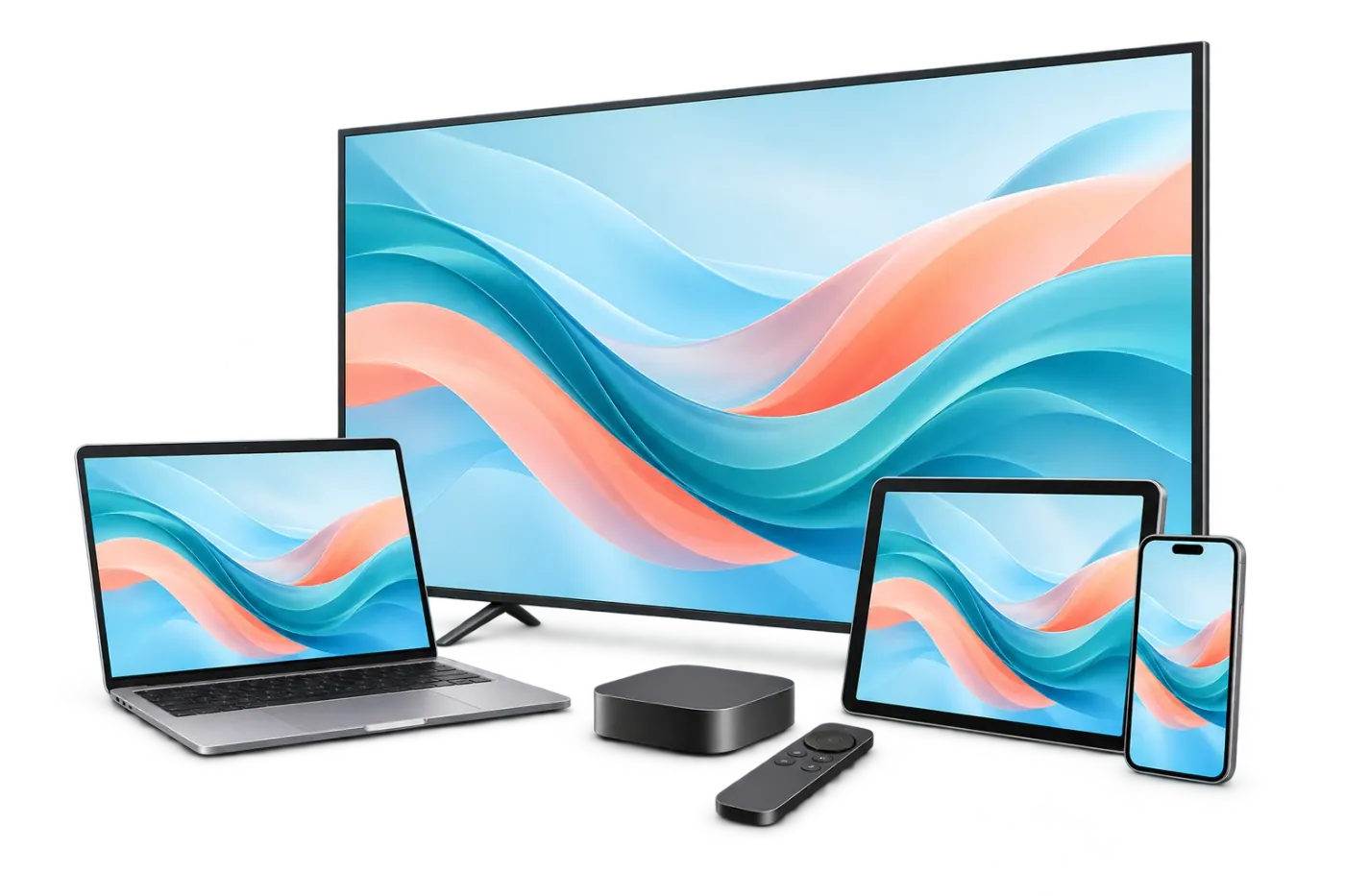
1. Identify the device family
"Smart TV" isn't specific enough — what matters is the system the device runs, because that decides which app store it uses.
- Fire TV — Amazon sticks, the Fire TV Cube and TVs with Fire TV built in.
- Google TV / Android TV — Google TV streamers, Android TV boxes and many Sony, TCL, Hisense and Philips TVs.
- Samsung (Tizen) and LG (webOS) — each has its own app store.
- Apple — iPhone, iPad, Apple TV and Mac, all using the App Store.
- Windows PCs and Roku devices round out the common cases.
2. Find the system and version
These menu paths come from each manufacturer's own support pages (linked in the sources). Menus vary a little by model and year.
Fire TV
Settings → My Fire TV (or "Device & Software" / "Device") → About, then read the software version. This matters more than the model name: Amazon's developer documentation lists Fire TV Stick 4K Select (2025), Fire TV Stick HD (2026) and Fire TV Stick 4K 3rd Gen (2026) as running Vega OS, a Linux-based system where Android player apps don't install the usual way, while the similarly named Fire TV Stick 4K Max (2nd Gen) runs Fire OS. Confirm the path for your exact software and app rather than assuming all devices with "Fire TV" in the name install the same software.
Source clarification, October 18, 2026: Amazon's Developer Tools page includes a Fire OS 14 limitation inside its diagnostic-feature guidance. That note alone does not establish that every consumer installation route is unavailable. Its ADB instructions are for development, so enabling ADB debugging is not a normal prerequisite for using Downloader. When the exact player/model route is uncertain, ask support to confirm it before buying.
Google TV and Android TV
Settings → System → About. TVs and boxes that open Google Play for apps belong in this family.
Samsung and LG
Samsung: Settings → Support → About This TV shows the model code and software version. LG: Settings → Customer Support → TV Information shows the model; LG notes the path can differ by product.
Apple
iPhone and iPad: Settings → General → About shows the iOS or iPadOS version. Apple TV: Settings → General → About shows the model. Mac: Apple menu → About This Mac shows the chip (Apple silicon or Intel) and macOS version.
Windows
Settings → System → About, under Windows specifications.
Roku
Roku devices add apps from the Roku Store. Roku's developer documentation describes sideloading as a developer feature that needs developer mode and allows one sideloaded app at a time — not a normal way to install a player.
3. Find a player from an official source
Look for the player in your device's own app store, or on the developer's own website when that's how the developer distributes it. Check the developer name on the listing: copycat apps with near-identical names exist (we found one for IBO Player on Apple's store). Avoid downloads from re-upload sites and "codes" shared on forums.
For Flix-named apps, check the exact publisher too: the Evolution World player, Flix Pro Player by Logic Titans and Flix: IPTV Smarters Player by Muhammad Arif Jamil are different products. The app source directory keeps their store links and availability notes separate. A downloaded app does not include the subscription sold here.
Also check the player's own price model — free, paid upfront, license after a trial or recurring subscription — before you commit. See two separate fees.
4. Match the login format
A player must accept the kind of login your subscription provides. Flix IPTV's welcome email includes two:
- Xtream Codes login — Server URL, username and password. Players that accept it can load live TV, movies and series separately. This is the route our guides use.
- M3U playlist URL — a single link. Simple players can open it, but many show only channels, and M3U links don't load on every line: one real line we tested in October 2026 refused its M3U link. Confirm with support before relying on M3U.
Some players use a third method: a MAC-address portal on the developer's website where you upload the M3U link. That still depends on the M3U link working.
Worked examples
| Device | System | Player and source | Login | Result |
|---|---|---|---|---|
| Fire TV Stick 4K Max (2nd Gen) | Fire OS | TiviMate IPTV Player, from its developer via Downloader | Xtream Codes | Setup path available |
| Fire TV Stick 4K Select (2025) | Vega OS | None verified | — | Needs confirmation |
| Google TV streamer | Google TV | TiviMate IPTV Player, Google Play | Xtream Codes | Setup path available |
| Samsung smart TV | Tizen | IBO Player, developer site | M3U via MAC portal | Needs confirmation |
| iPad | iPadOS | Smarters Player Lite or GSE Smart IPTV PRO, App Store | Xtream Codes | Setup path available |
These examples preserve the official-listing and documentation checks from 14 October 2026; the app-identity and Fire OS source clarification above were checked on October 18, 2026. None is a hands-on test of every model. Screens and availability differ between versions and regions.
When it says "needs confirmation"
That's not a "no" — it means one link in the chain isn't verified. Before paying for a plan or a player license:
- Note the device model, its system version and the player you'd use.
- Send them to support — contact@iptvservices.online or WhatsApp +44 7577 326684. Never include your password.
- If you can, test with the 24-hour trial (no credit card) during the player's own trial period.
The device check writes that message for you and lets you copy a checklist.
Sources
- IPTV Services — Refund policy — non-refundable cases
- Amazon Fire TV developer docs — Fire OS overview (Fire OS / Vega OS by device)
- Amazon Fire TV developer docs — Apps from Unknown Sources, Developer Options
- Amazon Fire TV developer docs — diagnostic tools and platform-specific features
- Google Android TV Help — software update / About
- Samsung US support — About This TV
- LG US support — identify your TV model
- Apple Support — identify your Apple TV model
- Apple Support — find the iOS / iPadOS version
- Apple Support — About This Mac
- Microsoft Support — find information about your Windows device
- Roku developer docs — sideloading is a developer feature
- TiviMate IPTV Player — Google Play listing
- Smarters Player Lite — App Store listing
- IBO Player — developer site
- Flix IPTV Player — publisher identity — Evolution World FZCO / net.flixapp.player; source check October 18, 2026, current regional availability not confirmed
- Amazon: Developer Tools Menu — diagnostic feature notes are not a universal consumer installation guide; checked October 18, 2026